Swap
Confirm Swap Info
After clicking the 'Swap' button in the center of the page, you will see a confirmation pop-up. 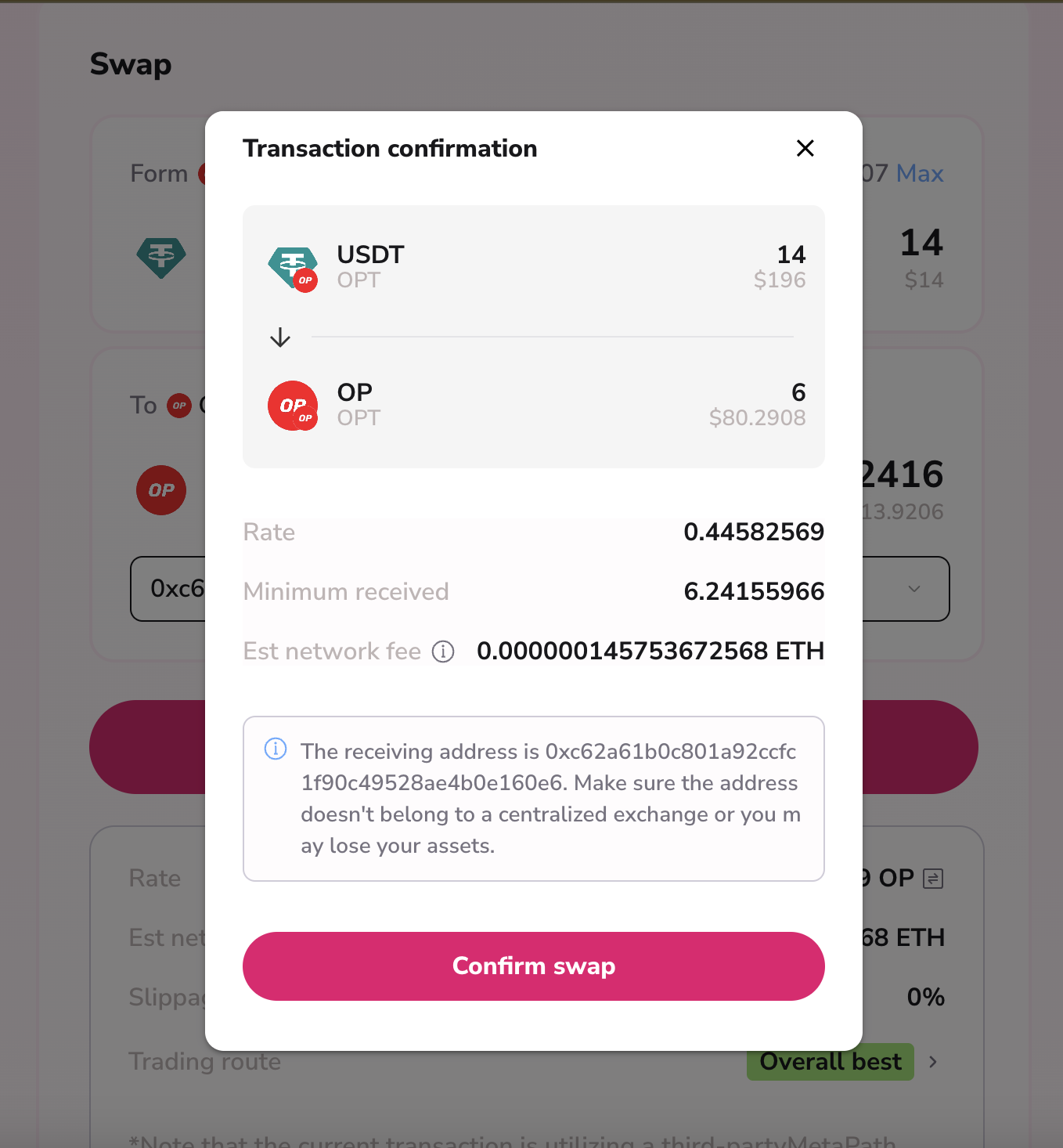
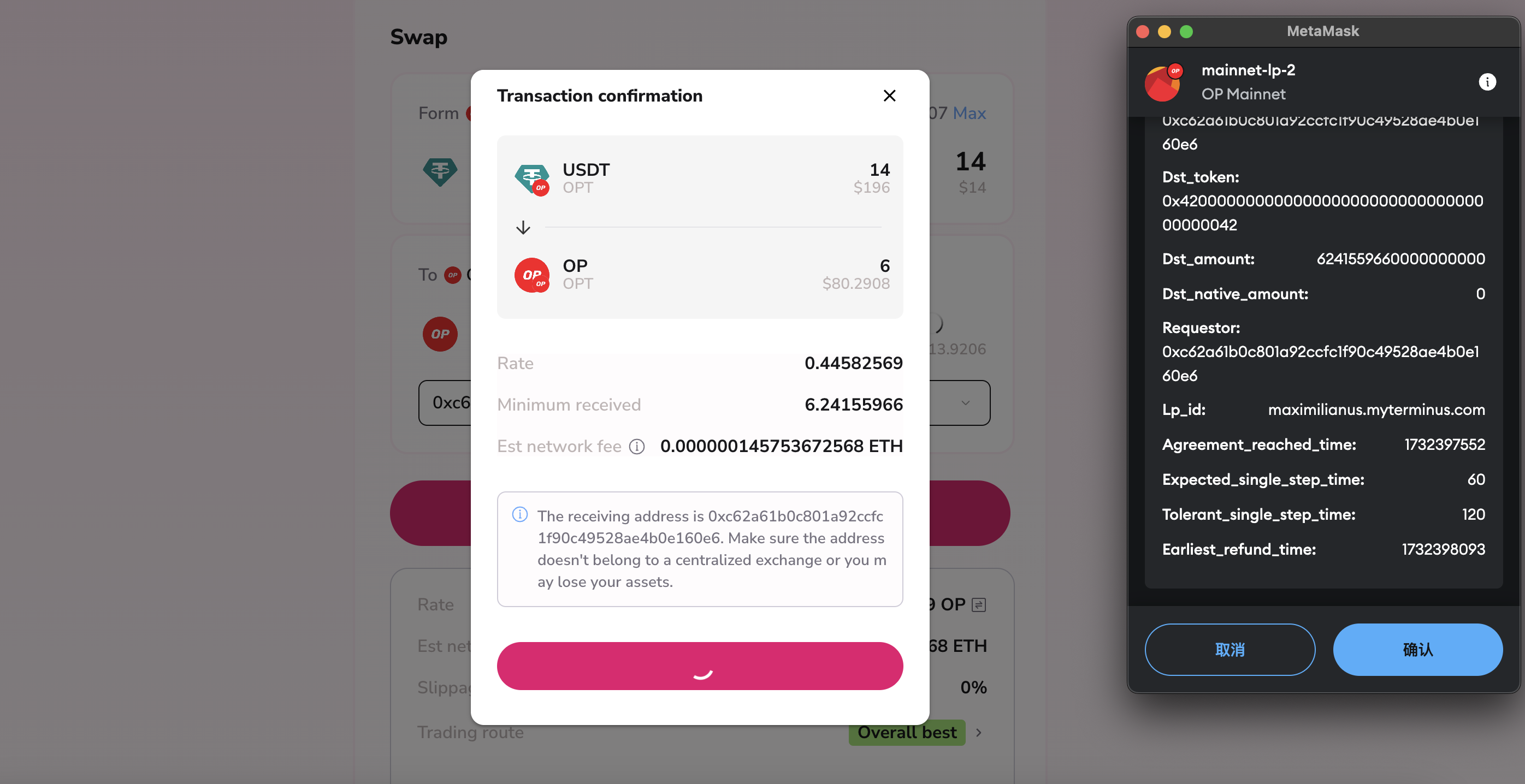
Sign Swap Info
After confirming the tokens and amounts you wish to swap in the confirmation pop-up, click 'Confirm Swap' to sign the transaction information. This step requires you to confirm within your connected wallet extension.
Tips
- The relay will verify whether the transaction information you submitted matches the signature.
- If the liquidity provider agrees to proceed with the transaction, they will also sign the transaction information and submit it to the relay for verification.
Locl Token
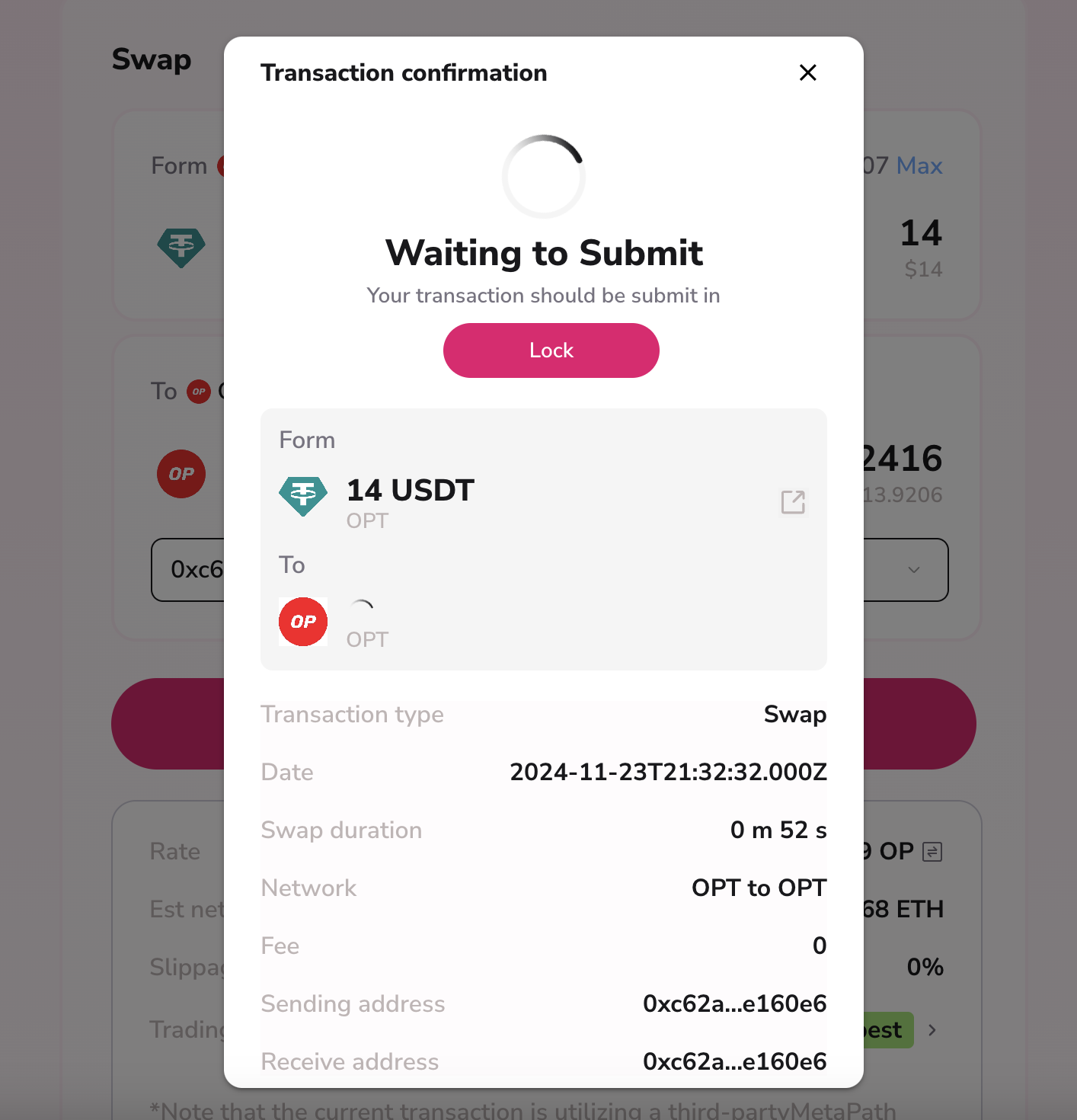
After both parties reach an agreement on the transaction, you will see a status of 'Waiting to Submit.' At this point, you need to click 'Lock' to secure the tokens in the otomic contract.
Tips
After you lock the tokens, the liquidity provider will also lock the tokens in the contract.
Release Token
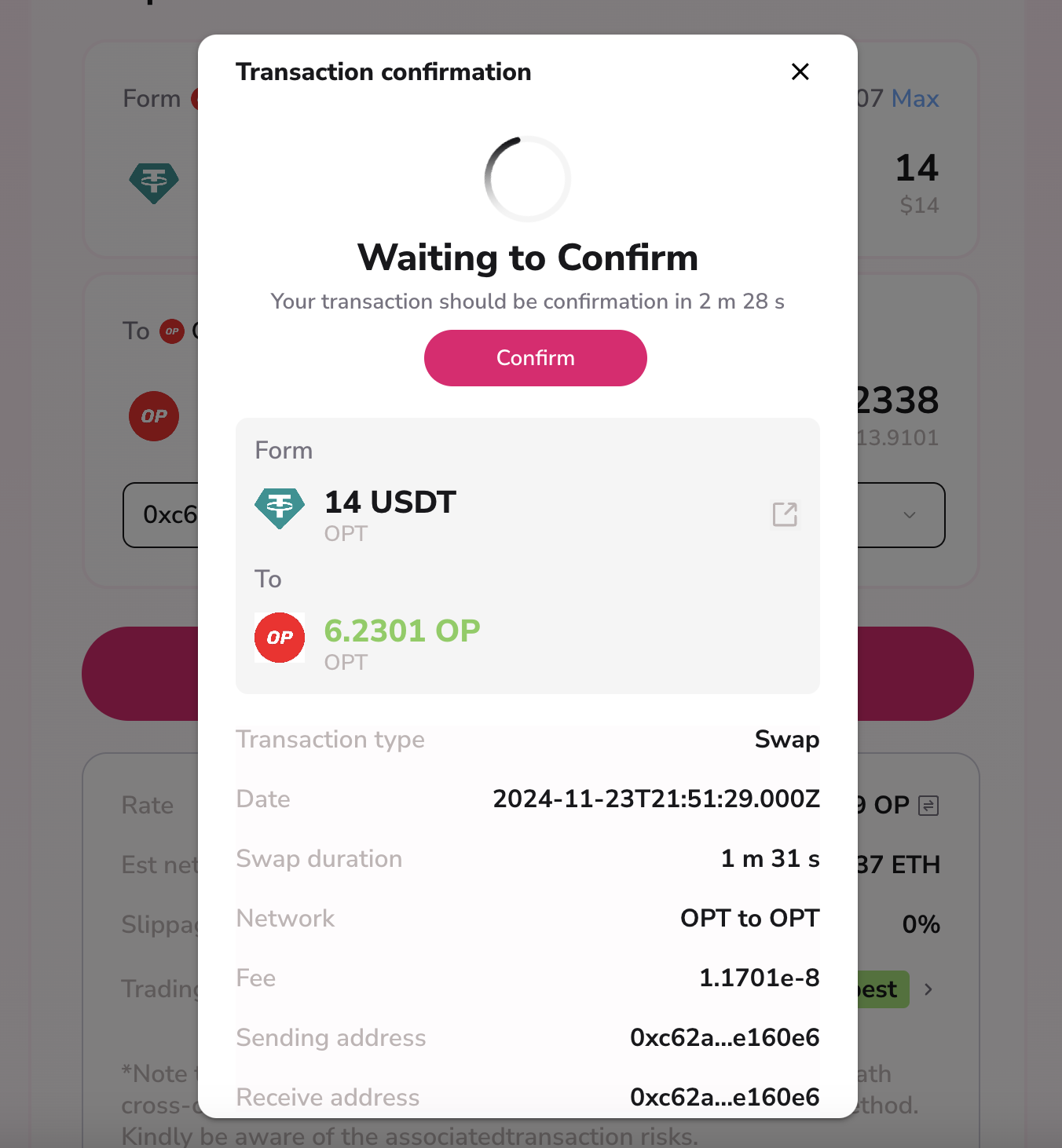
After both parties have locked the tokens, you will see a status of 'Waiting to Confirm.' At this point, you need to click 'Confirm' to release the tokens you locked in the otomic contract to the other party. Once the other party receives the tokens you released, the liquidity provider will release their locked tokens to you.